

Currency input — Usage
Quick start
Section titled “Quick start”Give it a locale and a currency. It shows a formatted amount when idle, a plain editable number
while focused, and hands you back a number (or null).
function Demo() {
  const [value, setValue] = React.useState(50000)
  return (
    <div>
      <CurrencyInput
        locale="bg-BG"
        currency="EUR"
        value={value}
        onChange={setValue}
        aria-label="Amount"
      />
      <p>Numeric value: {value === null ? 'empty' : value}</p>
    </div>
  )
}
The field formats as you type: grouping and the symbol stay visible, and the caret stays put.
5000 stays 5000 €, but the moment it crosses 10000 a space appears — the Bulgarian rule that only
groups above 9999, applied for free because Intl owns the formatting.
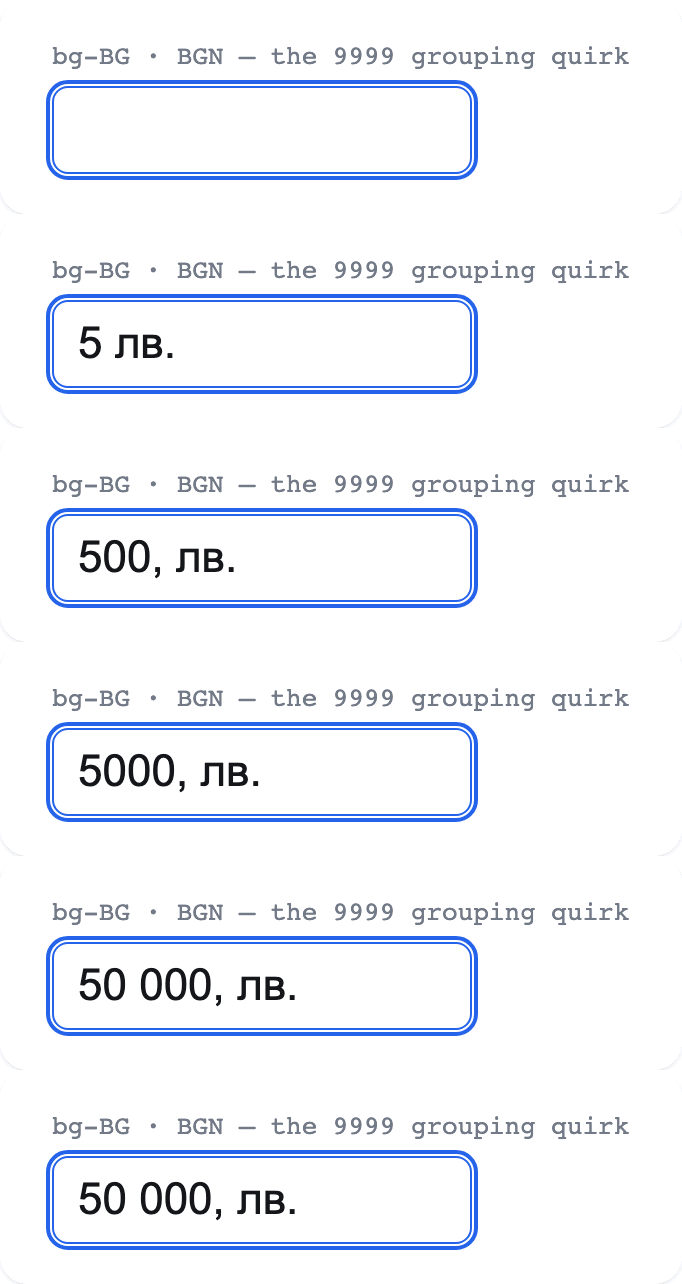
Notice the caret never jumps, even as separators appear and the symbol shifts:
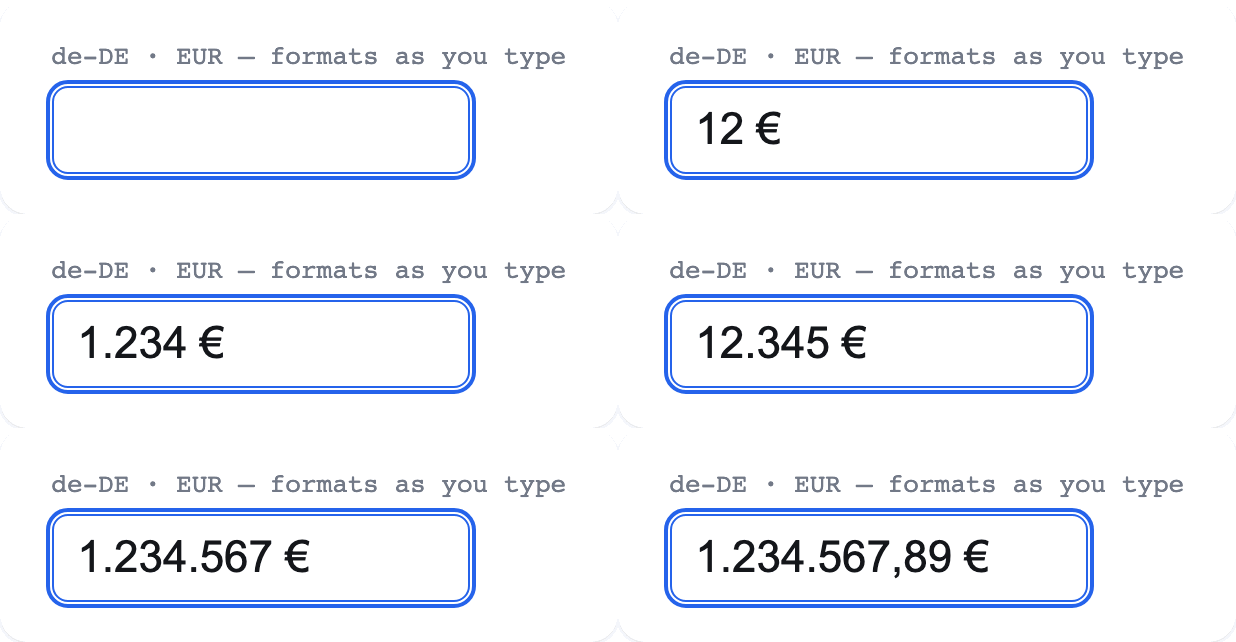
How it works
Section titled “How it works”An HTML <input> has no type="currency". Rolling your own means handling a different group
separator, decimal separator, symbol position, and fraction-digit count for every locale — and
keeping the caret from jumping as separators appear while you type.
This library solves both:
- It reads every locale fact from
Intl.NumberFormat— never reconstructing grouping — so the tricky locales are correct by construction, not special-cased. - It keeps the caret in place while reformatting by anchoring it to the digit you typed rather than the character position, so the group separators that come and go never move it.
Prefer the simplest possible field? Set
formatMode="blur"to show a plain number while focused and format only on blur — no caret management at all. It is a notch less polished, but bullet-proof.
Next steps
Section titled “Next steps”- Live playground — explore locales, currencies, precision, digits, negatives, and stepping.
- Why this library — the problem, and how it differs from the alternatives.
- Localization — the locale matrix, the star of the show.
- Formatting options — fraction digits, symbol display, negatives.
- Styling — complete fields, validation states, CSS Modules, utilities, and RTL.
- UI libraries — shadcn/ui, Radix Themes, MUI, Chakra, Mantine, and Ant Design.
- Form recipes — React Hook Form, Formik, React Final Form, TanStack Form.
- API reference — generated from the source with TypeDoc.
Formatting options
Section titled “Formatting options”Sensible defaults come from the currency itself; every knob below is optional.
Live vs. blur formatting
Section titled “Live vs. blur formatting”formatMode controls when the field formats.
'live'(default) formats as you type — group separators and the symbol stay visible, and the caret is kept in place by anchoring it to the digit you typed, so it never jumps. Accepts whichever decimal key your keyboard offers (a comma on a German layout, a dot on a US one).'blur'shows a plain, unformatted number while the field is focused and only formats once it loses focus. There is no caret management at all — the simplest, most bullet-proof behaviour, at the cost of a little polish.
function Demo() {
  const [live, setLive] = React.useState(1234.5)
  const [blur, setBlur] = React.useState(1234.5)
  return (
    <div>
      <p>
        <code>live</code>:{' '}
        <CurrencyInput
          locale="de-DE"
          currency="EUR"
          value={live}
          onChange={setLive}
          aria-label="live"
        />
      </p>
      <p>
        <code>blur</code>:{' '}
        <CurrencyInput
          locale="de-DE"
          currency="EUR"
          formatMode="blur"
          value={blur}
          onChange={setBlur}
          aria-label="blur"
        />
      </p>
    </div>
  )
}
Both emit the same number; only the editing experience differs.
Fraction digits
Section titled “Fraction digits”By default the maximum comes from the currency (JPY → 0, EUR → 2, KWD → 3) and the minimum is 0, so
no trailing zeros are forced. Override either.
function Demo() {
  const [value, setValue] = React.useState(1234.5)
  return (
    <div>
      <p>
        default:{' '}
        <CurrencyInput
          locale="en-US"
          currency="USD"
          value={value}
          onChange={setValue}
          aria-label="a"
        />
      </p>
      <p>
        <code>minimumFractionDigits=2</code>:{' '}
        <CurrencyInput
          locale="en-US"
          currency="USD"
          minimumFractionDigits={2}
          value={value}
          onChange={setValue}
          aria-label="b"
        />
      </p>
    </div>
  )
}
Currency display
Section titled “Currency display”currencyDisplay maps straight through to Intl: 'symbol' (default), 'narrowSymbol', 'code',
or 'name'.
function Demo() {
  return (
    <ul>
      {['symbol', 'narrowSymbol', 'code', 'name'].map((d) => (
        <li key={d}>
          <code>{d}</code>:{' '}
          <CurrencyInput
            locale="en-US"
            currency="USD"
            currencyDisplay={d}
            value={1234.5}
            aria-label={d}
          />
        </li>
      ))}
    </ul>
  )
}
Negative amounts
Section titled “Negative amounts”Negatives are rejected unless you opt in with allowNegative — useful for refunds or adjustments.
<CurrencyInput locale="en-US" currency="USD" allowNegative />Arrow-key stepping
Section titled “Arrow-key stepping”Pass step to make ArrowUp and ArrowDown adjust the amount. The result is normalized to the
currency’s maximum fraction digits, avoiding floating-point display artifacts.
<CurrencyInput locale="en-US" currency="USD" step={0.25} />Without step, the library does not intercept the arrow keys.
Raw-input transformation
Section titled “Raw-input transformation”transformRawValue runs before locale-aware sanitization. Use it for application-specific cleanup,
not for recreating locale rules:
<CurrencyInput locale="en-US" currency="USD" transformRawValue={(raw) => raw.replaceAll('_', '')} />Empty vs. zero
Section titled “Empty vs. zero”value is number | null. null (or undefined) renders an empty field, never "0".
onChange emits null when the user clears the field, so you can tell “nothing entered” from
“entered zero”.
A note on precision
Section titled “A note on precision”The emitted value is a JavaScript number, which is what form libraries and validation schemas
expect. For everyday amounts this is exact. If you need lossless decimals for very large sums, keep
the raw string handed to onChange:
<CurrencyInput locale="en-US" currency="USD" onChange={(value, meta) => { // meta.value -> number | null // meta.formatted -> the localized string // meta.raw -> the clean editable string }}/>